Your First 3D Print
Before the Print
RULES
- Don’t log out of the Bambu Lab user accounts from either the 3D printer or on Bambu Studios.
- Handle the 3D printer with care!
PRE-PRINT CHECKLIST
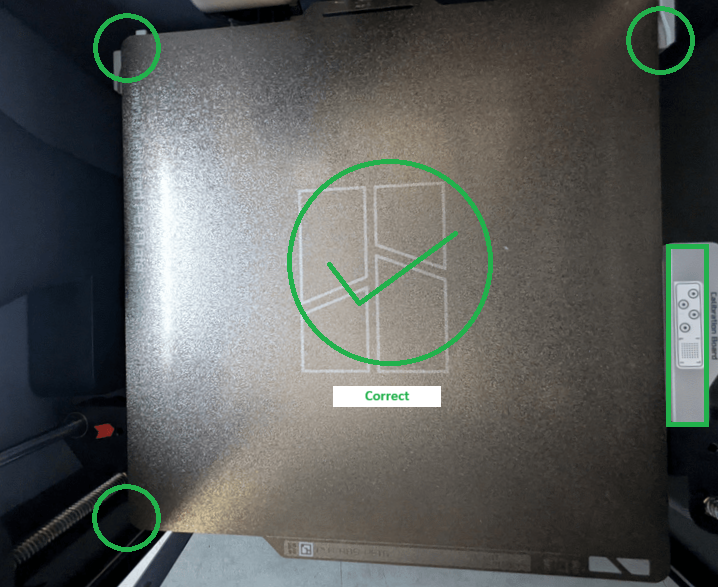
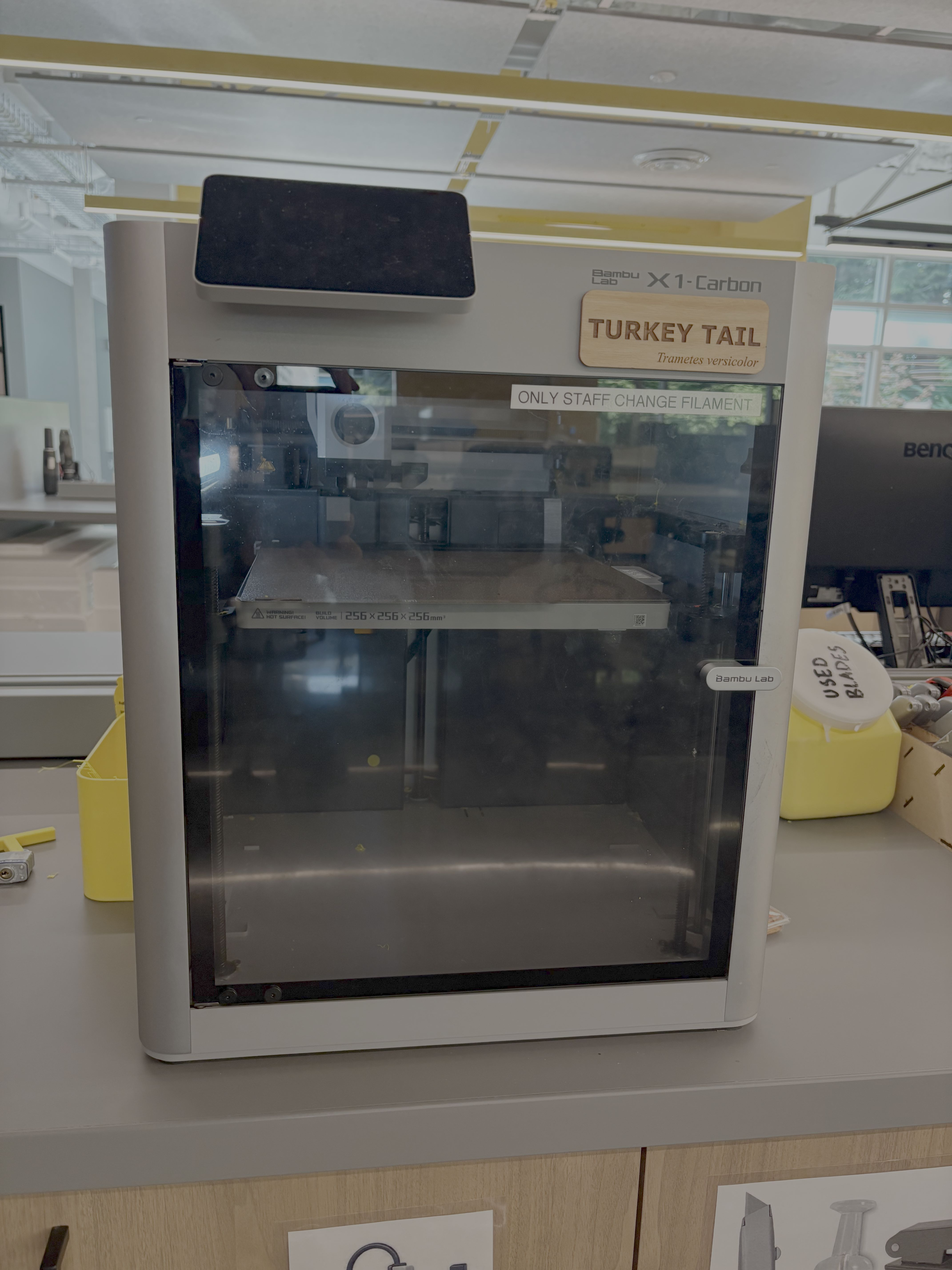
- The print bed is empty, placed correctly, and the printer is not printing. If there are finished prints on the bed, remove them.
- There is enough filament on the spool at the back of the printer.
Preparing 3D File
- If you are using Fusion360, right click on body and select “Save as mesh” to generate the STL file of your 3D model.
- Use one of the USB flash drive to move the STL file from your computer onto the USB.
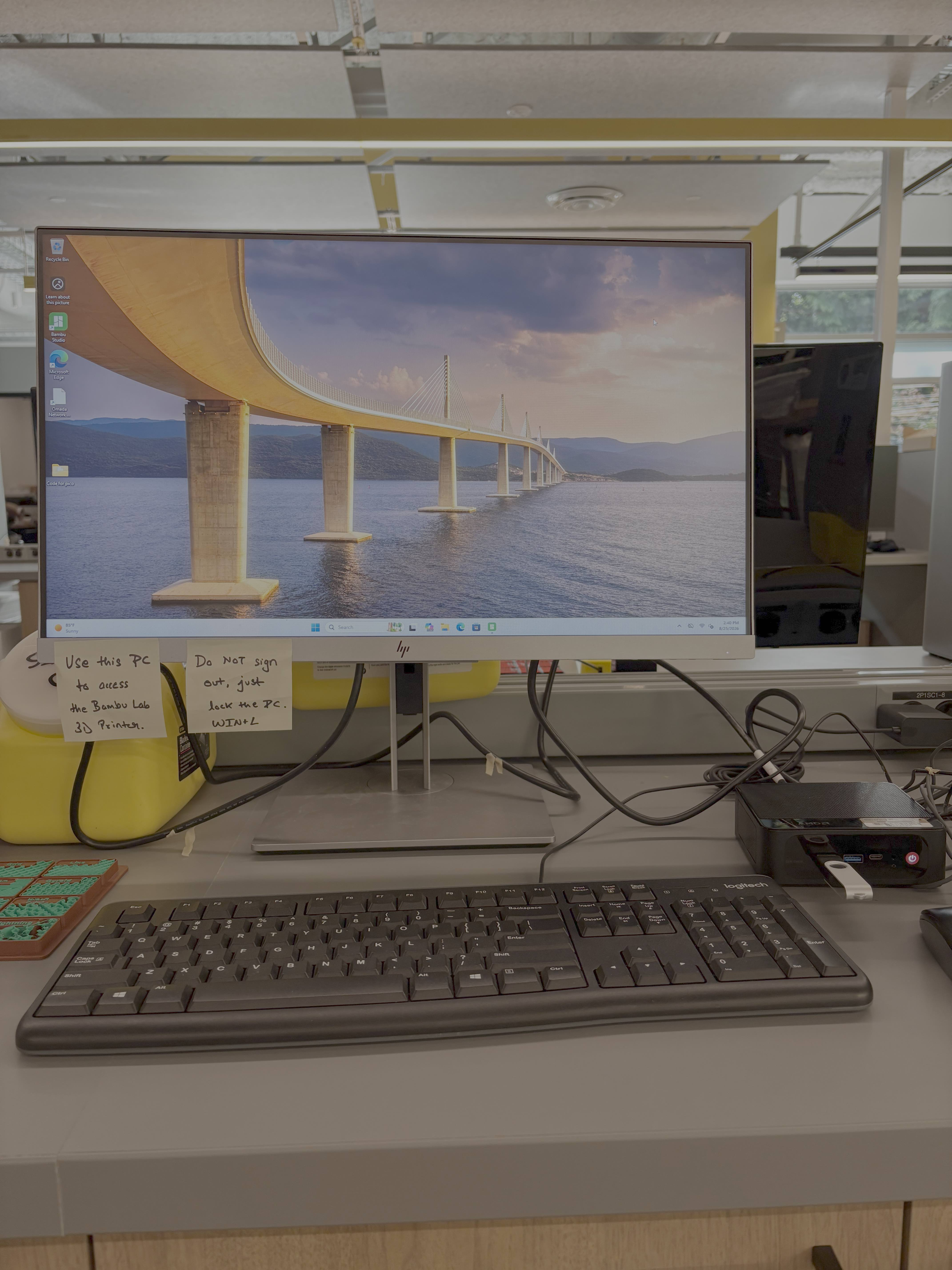
- Find the Bambu computer in front of the Bambu Lab 3D printer and use the login information posted on the computer to login.
- Insert your USB to the USB dock in front of the Bambu computer.
Preparing Bambu
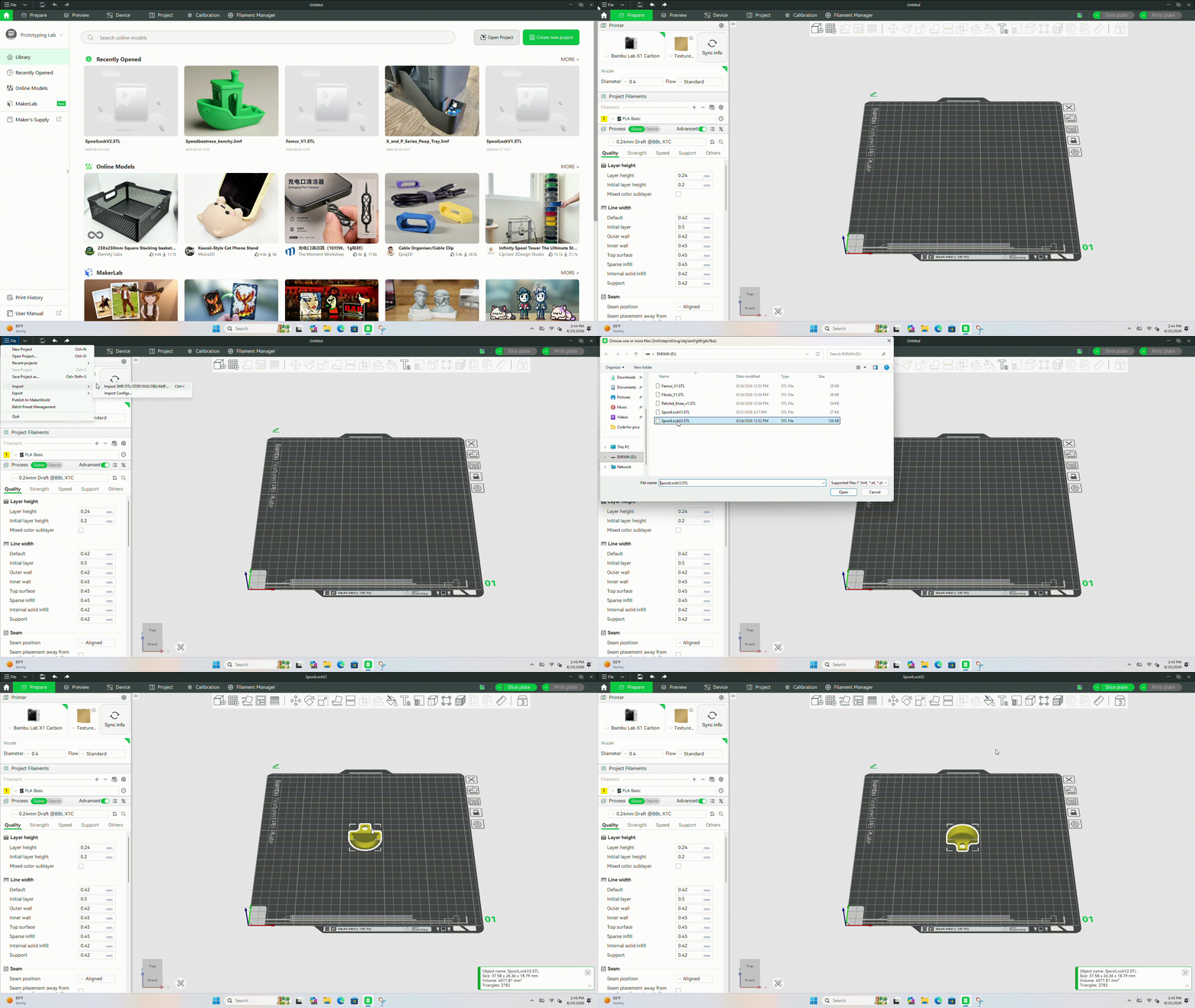
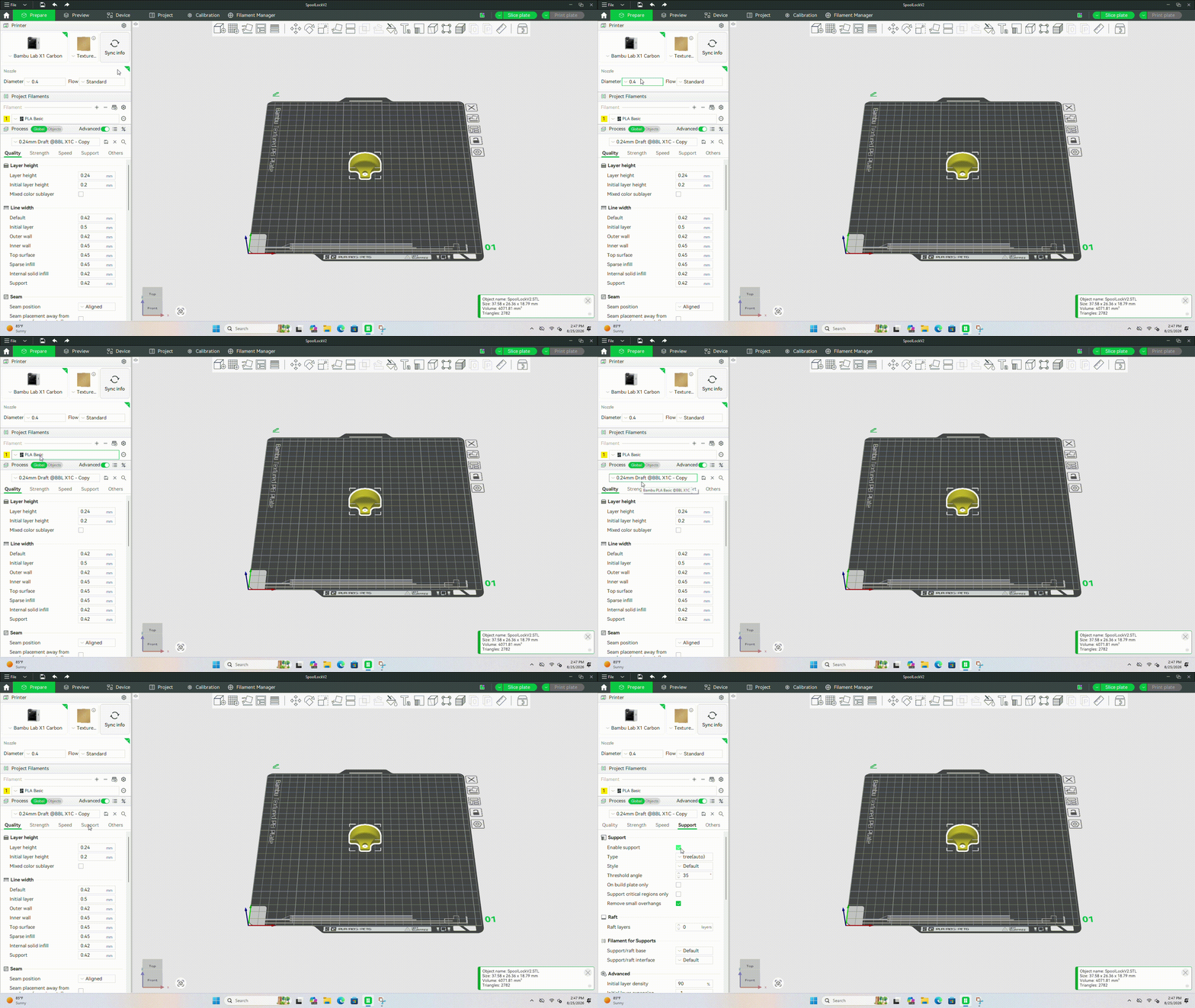
- Find and open the Bambu Studio software from the desktop.
- On the home screen, click on “Create new project” on the upper right corner.
- While on the “Prepare” Tab, click on File -> Import -> Import 3MF/STL/STEP/…
- Select and open the STL file from the USB.
- The 3D model will appear on the print bed.
- Click on the third icon from the left in the toolbar on top (with the word “auto”) to auto orient the 3d print.
Settings
- Make sure the settings in the prepare tab on the left matches the following settings:
| Setting | X1 Carbon | P2S |
|---|---|---|
| Printer | Bambu Lab X1 Carbon | Bambu Lab P2S |
| Diameter | 0.4 | 0.4 |
| Filament | Bambu PLA Basic | Bambu PLA Basic |
| User Preset | Default | Default |
Slice and Print
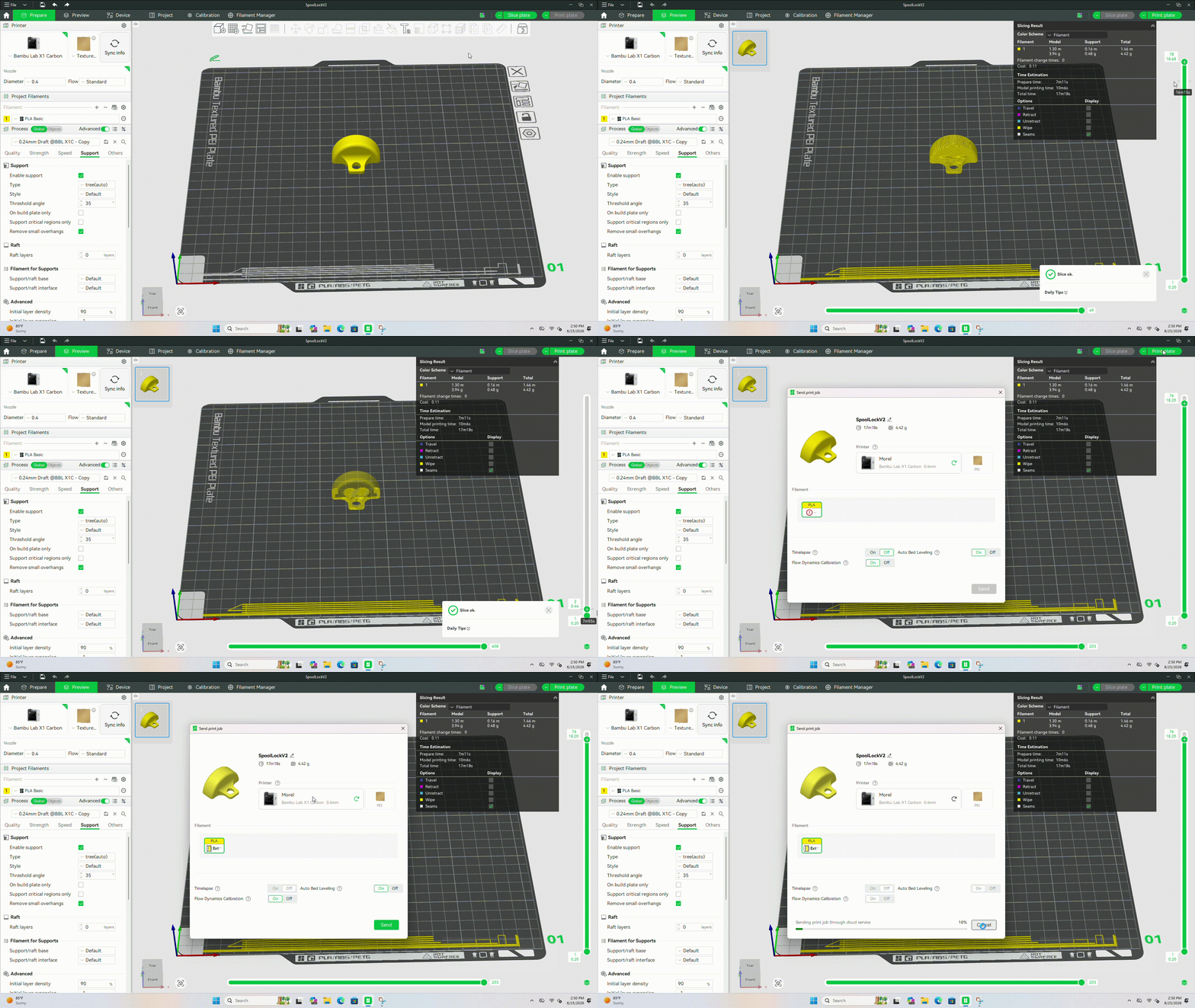
- Click on “Slice plate” on the top right corner.
- Click on “Print plate”, you will see a pop-up window showing you the print time and the option to choose a printer.
- Select an available printer from the dropdown menu.
- Click on the “Send” button to send the sliced file to the 3D printer.
- Wait for your print to be completed.
After The Print
- Remove the print from the metal sheet gently.
- If the print does not come off easily, fold the front lip of the sheet, push upwards gently and take out the sheet.
- Then bend the sheet slightly to remove the 3D print.
- Return the metal sheet back into the printer and close the glass door.
- Done!! Have fun with your first 3D print on the Bambu Lab X1 Carbon/P2S.
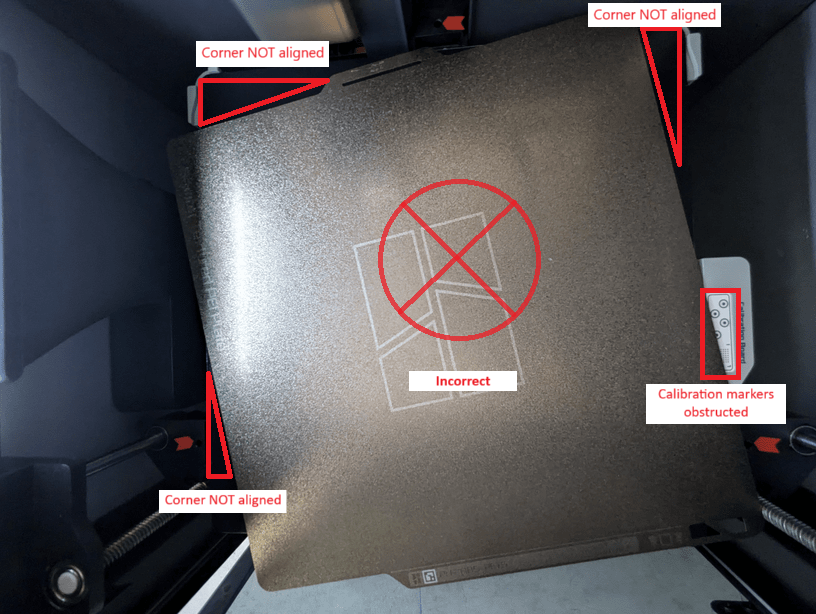
Please see the reference images below for correct and incorrect placement of the print bed:
Incorrect
Correct